 Procedure for Register construction/commodity purchase code
 Outline
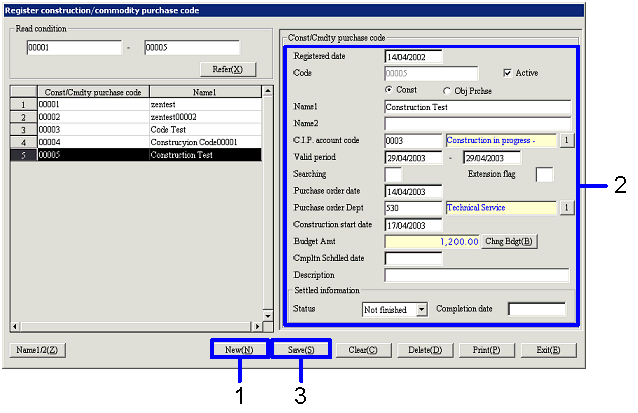
In [Register construction/commodity purchase code], register the code such as Construction code or Commodity purchase code used to manage the Construction in progress code by a breakdown of the Details. In [Spread] on the left side of the screen, registered Construction/Commodity purchase codes can be listed. With this list, you can select the Construction/Commodity purchase code to be set. To register a new code, click the "New" button.
1.Screen display method
- Select [Assets] → [Construction in Progress] → [Register].
- From the Menu, select [Register Construction/Commodity Purchase Code].
→ The [Register construction/commodity purchase code] screen will be displayed.
2.New registration of Construction/Commodity purchase code
→ To Menu Reference
- Click the "New (N)" button.
- Enter the required items (Construction in progress code, Name, etc.).
- After entering the required items, click the "Save (S)" button.
3.1 Update Construction/Commodity purchase code
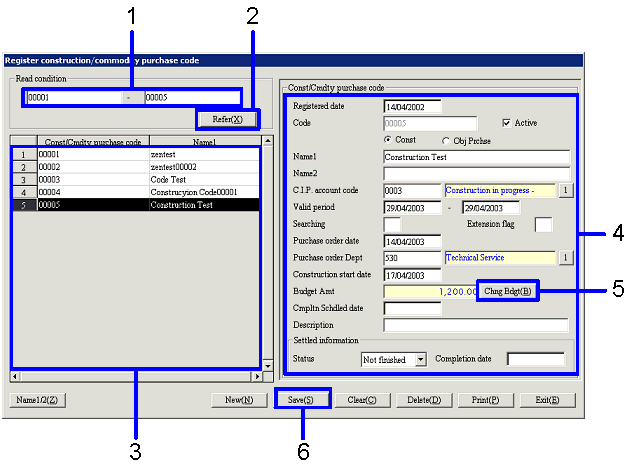
- Enter a Read condition.
- After entering the Read condition, click the "Refer (X)" button.
→ The list of Construction/Commodity purchase codes will be displayed on the left side of the screen.
- Select the Construction/Commodity purchase code you want to update.
→ Details of the selected Construction/Commodity purchase code will be displayed on the right side of the screen.
- Modify the contents of the Construction/Commodity purchase code.
- To update "Budget Amt", click the "Change budget" button.
→ The [Change budget] screen will be displayed.
- Click the "Save (S)" button.
→ The Construction/Commodity purchase code will be saved.
3.2 Update Budget
→ Menu Reference
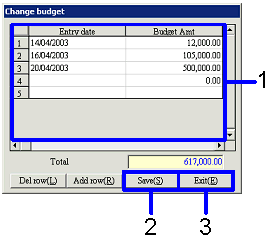
- Fill in "Entry date" and "Budget Amt."
- After entering the budget amounts, click the "Save (S)" button.
→ "Total" will be updated.
- Click the "Exit (E)" button.
→ The updated value in "Total" will be reflected on "Budget Amt" in the [Change budget] screen.