 Register goods connection
Link the goods registered in [Register goods] and the project codes
registered in [Register project
code1] of the [Common master module].
The project codes linked here will be displayed as the default project codes
when specifying goods.
 Screen Transition
[Master management]
↓
[Logistics master]
↓
[Goods management]
↓
[Goods connection registration]
↓
[Goods connection registration] screen
Item
Setup
[Goods connection registration]
- Select project code
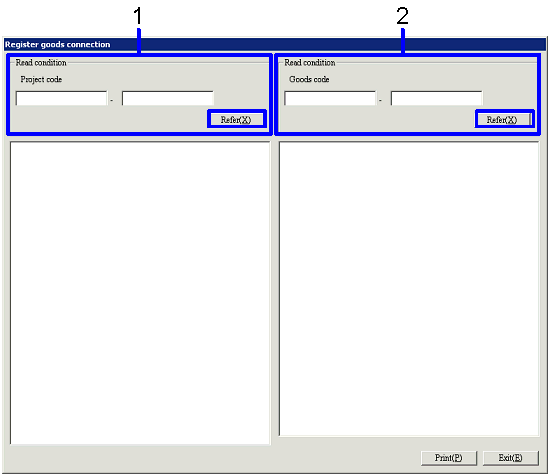
When the "Refer" button is clicked, the project code 1
that matches the read conditions will appear on the left side of the screen.
-
Project code
Select the read conditions for the project codes of the registration objects.
The range of the project code can be specified.
- Goods code selection
When the "Refer" button is clicked, the goods codes
that match the read conditions will be listed up on the right side of the
screen.
-
Goods code
Select the read conditions for the goods code of
the registration objects.
The range of the goods code can be specified.
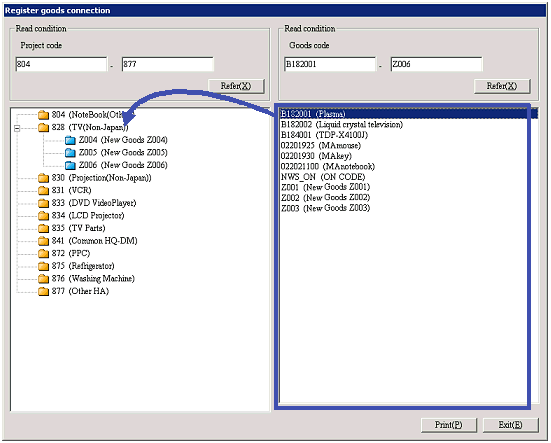
- Drag and drop goods from
the right side of the screen to the left side of the screen
Select the goods to register the structure to the
specified project code from the right side of the screen, and then drag and
drop to the project code folder on the left side of the screen. When selections are made while using
the Ctrl key and / or the Shift key, multiple goods can be dragged and dropped
at once. Structure registration
for one good cannot be conducted for multiple project codes.
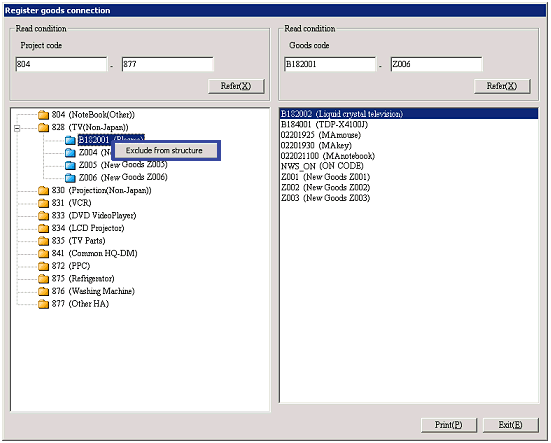
[Changing and canceling goods connection]
- Right-click the goods on
the left side of the screen
When cancelling a goods connection structure,
either select the object goods from the left side of the screen and select "Exclude
from structure" by clicking the right button or drag and drop the object goods
to the right side of the screen.
When making changes to the goods connection, first cancel the connection
structure, then drag and drop from the right side of the screen to the left
side.
Buttons