 Register delivery to
Register the delivery to
destinations related to the correspondents.
If the "Delivery to simultaneous registry" checkboxes
is ON when registering correspondents in [Register correspondent] in the
[Common master module], the information copied from the correspondents are registered
in the [Details] tab. When
structures are registered in the [Register structure] tab, they can be used as
the deliver to destinations.
 Screen Transition
[Master management]
↓
[Logistics master]
↓
[Other management]
↓
[Register delivery to]
↓
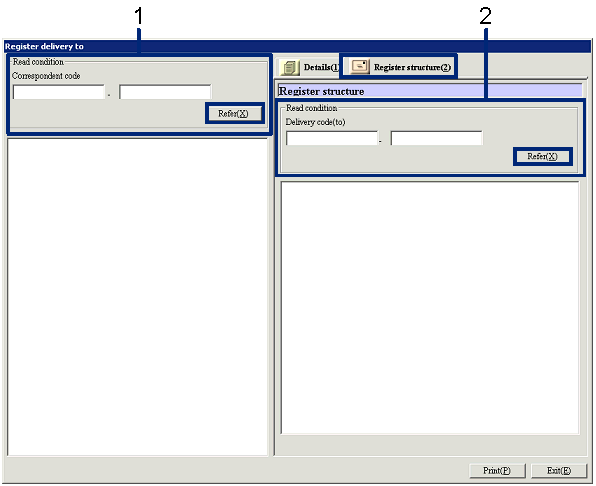
[Register delivery to] screen - [Details],
[Register structure] tab
Item
Setup - [Details] tab
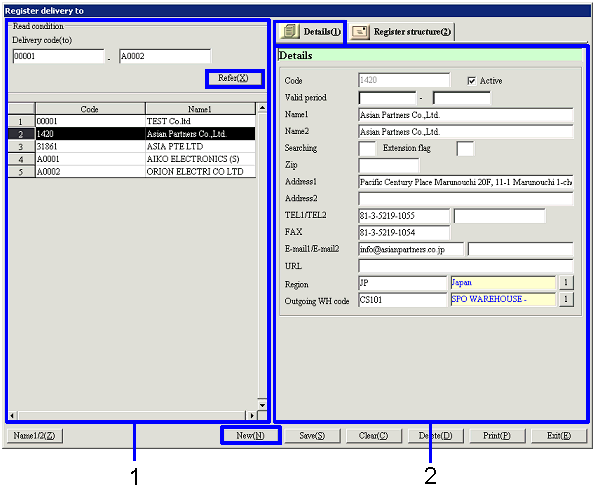
- Delivery to selection (or
new registration)
When the "Refer" button is clicked, the list
of delivery to destinations that match the read conditions will be
displayed. Select the delivery to
destinations to setup. The
delivery to information selected will be displayed on the Details tab.
When registering a new delivery to destination, click "New" button.
-
Delivery to, Code
Select the read conditions of the delivery to destinations to register and / or
refer.
The range of the delivery code (to) can be specified.
-
Code, Name
The delivery to codes and names that match the read conditions will be
displayed.
- Details entry
When the "Refer" button is clicked, the list of delivery to destinations that
match the read conditions will be displayed. Select the delivery to destinations to setup. The information on the selected delivery
to destinations will be displayed on the Details tab.
When registering a new delivery to destination, click "New" button.
-
Code
Enter the code of the delivery to
destination. Make an entry with up
to 20 single-byte alphanumeric.
When the "Delivery to simultaneous registry" checkboxes have been turned ON
when registering correspondents in [Register
correspondent] in the [Common master module], the same code as the
correspondent code will be copied.
-
Active
-
Term of
validity
-
Name 1, 2
-
Searching
-
Extension
flag
-
Zip, Address1, Address2
Enter the zip and the address of the delivery to
destination.
-
TEL1/TEL2, FAX
Enter the telephone number and the fax number of
the delivery to destination.
-
E-mail1/E-mail2, URL
Enter the E-mail address and the URL of the
delivery to destination.
-
Region
Enter the region which the delivery to destination
is set. Select from the regions
registered in [Register region].
-
Outgoing warehouse code
Enter the outgoing warehouse of the delivery to
destinations to display as default.
Item setup - [Register structure] tab
[Delivery to structure registration]
- Correspondent selection
When the "Refer" button is clicked, the correspondents
that match the read conditions will be displayed.
-
Correspondent code
Select the read conditions of the correspondent codes to register.
The range of the correspondent codes can be specified.
- Delivery code (to)
selection
When the "Refer" button is clicked, the
delivery codes (to) that match the read conditions will be displayed on the
right side of the screen.
-
Delivery code (to)
Select the read conditions of the delivery code (to) to register.
The range of the delivery code (to) can be specified.
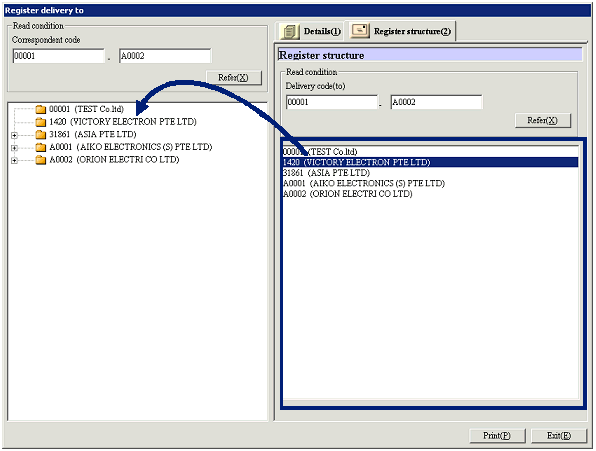
- Drag and drop delivery to
destinations from the right side of the screen to the left side of the screen
Select the delivery to destinations to register the
structure to the specified correspondent from the right side of the screen,
then drag and drop to the correspondent's folder on the left side of the
screen. When selections are made
by using the Ctrl key and/ or the Shift key, multiple delivery to destinations
can be dragged and dropped at the same time. The structure of one delivery to destination can be
registered in multiple correspondents.
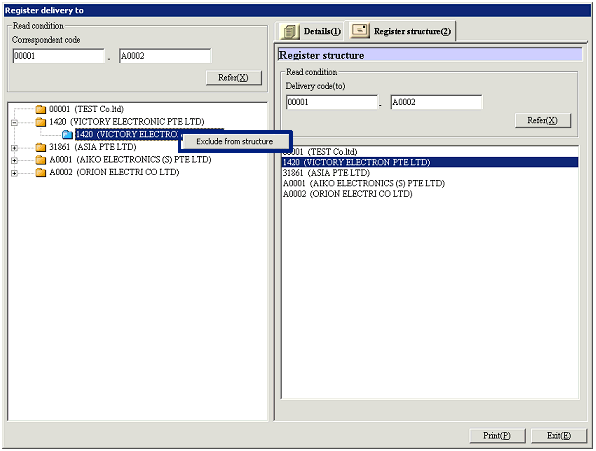
[Change/Cancel the delivery to structure]
- Right-click the delivery
to destination on the left side of the screen
When canceling a delivery to structure, select the
delivery to destination from the left side of the screen, right-click the
mouse, then select "Exclude from structure" or drag and drop to the right side
of the screen.
When changing the delivery to structure, first make a cancellation, then drag
and drop from the right side of the screen to the left side of the screen.
Buttons