 Register calendar
Register business days and holidays for each
month. One calendar can be
registered for one company.
To use borrowings control, register bank holidays in particular. When a scheduled repayment date of borrowings
control and lease control coincides with a bank holiday, a business day before
or after the holiday is automatically substituted for the original scheduled
date according to the holidays registered in the calendar.
The dates on the entry screens of [Claims subsystem], [Debts subsystem], [Sales
control subsystem] and [Purchase control subsystem] that coincide with the holidays
registered in the calendar are shown in red. If no calendar is registered, all days are considered as
business days and the dates are shown in black.
→ To Date
 Screen
Transition
Screen
Transition
[Master management]
↓
[Common master]
↓
[Other management]
↓
[Register calendar]
↓
[Register calendar] screen
Item
Setup
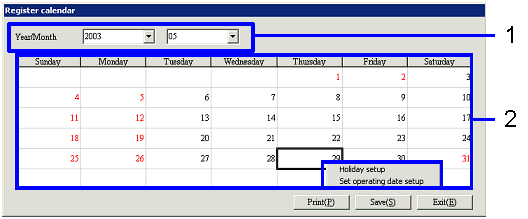
- Select registered year and
month
Manually enter in "Year/Month" the year and month
of the calendar to register or select from the pull-down menu.
→ If a calendar for the month concerned exists, the data is
displayed. If not, an error
message indicating that no data is registered is displayed and a calendar with
Saturdays and Sundays specified as holidays is displayed by default.
-
Year/Month
Enter the year and month for which to register a
calendar. The allowable range is 1900
– 2100.
- Set holidays and operating
days
Right-clicking on any date of the calendar allows
specifying the date as "operating day" or "holiday." Specifying a date as a holiday indicates the date in red.
Buttons
-
Print
Enter "Accounting period" or "Year" for output.
Selecting "Accounting period" outputs the calendar for the year
specified according to the accounting period registered with [Parameter setup]
of [System custodian].
Selecting "Year" outputs the calendar for the year specified (January to December). A year with a month not registered can
be specified but the unregistered months are output with the Date fields marked
with "- (minus)."
In the output forms, holidays are marked with "*" and operating days and
nonexistent days are shown with empty fields. The last row shows the totals of operating days and holidays
for the month.
-
Save
After registration, save each month by clicking
the "Save" button.
-
Exit