 Register product structure (structure)
Use the goods entered in [Register goods] to
register the product structure.
When "Production type" is set as "Assembly processing type" in [Logistics
parameter setup] in the [Logistics Master Module], this registration screen
appears.
This screen, which is designed for the "Assembly processing type," allows the
configuration of primary goods and subsidiary goods in a relation of 1:N.
Multiple hierarchies can also be set up.
When the parameter is set as "Material processing type," refer here.
 Screen
Transition
Screen
Transition
[Master management]
↓
[Logistics master]
↓
[Goods management]
↓
[Register product structure]
↓
[Register product structure (structure)]
screen
Item
Setup
[Product structure selection and
registration]
- Product structure selection
(or new registration)
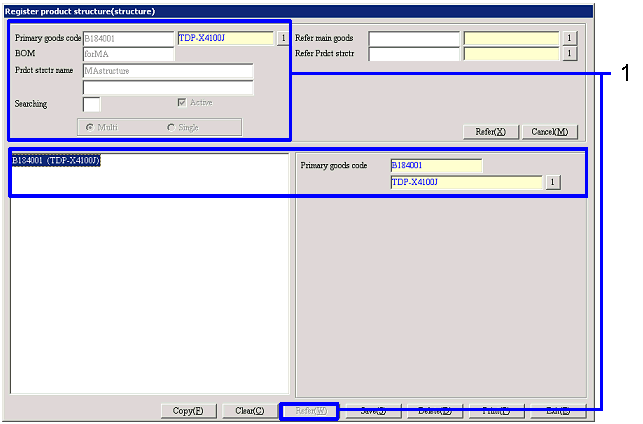
When registering a new product structure, select a "Primary goods code," enter "Product
structure," "Product structure name," and then click the "Reference (X)"
button.
The range to register the product structure will appear on the bottom portion
of the screen.
When editing a registered product structure, select the "Primary goods code"
and the "Product structure" and then click the "Reference (X)" button.
The product structure entered will appear on the bottom portion of the screen.
-
Primary goods code
Select from the goods registered in [Register goods].
In the case of new registration, select the code of the goods to set at the top
of the structure.
When editing a registered product structure, select the code of the goods that
is set as the primary goods in the structure.
-
Product structure
In the case of new registration, enter the code of the structure to register.
The user may enter up to 20 single-byte letters and numbers.
When editing a registered product structure, select the product structure code.
-
Product structure Name1, 2
Enter the product structure name1, 2
-
Searching
-
Active
-
Multi, Single
When registering or editing a product structure while referring to a registered
product structure, select either "Single" or "Multi" as the display method of
the product structure to use as reference.
-
Single
Only the top and the bottom layers of the reference
product structure will be displayed.
-
Multi
Every layer of the reference product structure will
be displayed.
- Editing or registering a product
structure configuration
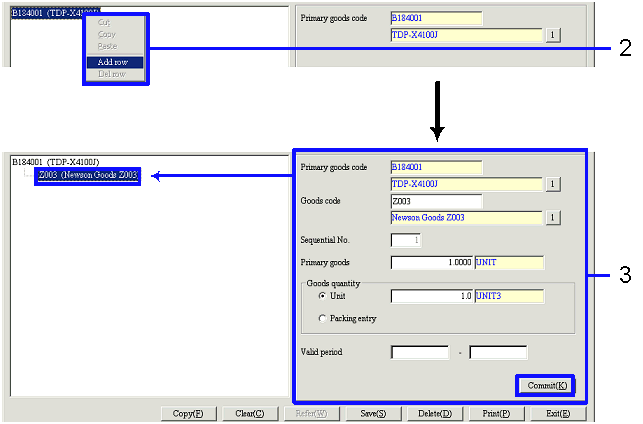
When goods are right-clicked in the product
structure displayed in the form of a tree on the bottom left side of the
screen, the menu that allows the following operations for the clicked goods
will be displayed. Goods cannot be
transferred by drag-and-drop on the product structure tree. When transferring
goods, use "cut" and "paste."
-
Cut
Cut the selected goods (including the bottom
layer). The cut goods can be pasted on to the lowest layer of other goods. This cut function differs form the
general Windows function in that the cut portion will not be deleted. The user must paste the goods. When
deleting, select "Delete row." The primary goods on the top layer cannot be
cut.
-
Copy
Copy the selected goods (including the bottom layer). The copied goods can be pasted to the
lowest layer of other goods.
The copied goods cannot be pasted on to the lowest layer of the source. The primary goods on the top layer
cannot be copied either.
-
Paste
This enables the pasting of the "cut" or "copied"
goods (including the bottom layer) onto the lowest layer of the selected goods.
-
Add row
Add goods to the layer one lower than the selected
goods. After "Add row" is
executed, enter the information on the added goods in the lower right side of
the screen.

-
Delete Row
Delete the selected goods (including the lowest
layer). The user may not delete
the primary goods on the top layer. To delete the whole product structure, use
the "Delete" button.
- Registering goods
When goods are added, click the "Commit" button
after entering data in the lower right side of the screen.
The "parent-child" relationship entered will be committed, and then reflected
on the tree display.
-
Primary goods code
The code and name of the primary goods will be
displayed.
-
Goods code (Displayed only when
goods [not the primary] is selected on the tree)
Enter the goods code of the goods. Changes cannot
be made after new registration.
-
Sequential No. (Displayed only when
goods [not the primary] is selected on the tree)
The sequence of the goods, the place of the goods
in the same layer in the product structure tree will appear. The smaller the number, the higher in
the lower left portion of the screen it will display.
-
Primary goods quantity (Displayed
only when goods [not the primary] is selected on the tree)
Enter the quantity of primary goods. Enter in unit quantities, "how many
primary goods will be created from the subsidiary goods" for the product
structure being registered. Since
this is generally registered based on the concept of "how many subsidiary goods
will be required to complete one primary goods," the value normally entered is "1."
-
Goods quantity (Displayed only when
goods [not the primary] is selected on the tree)
Select either "Unit" or "Packing entry" and then
enter the quantity. Enter "how
many subsidiary goods will be required to create primary goods" for the product
structure being registered.
Changes cannot be made after new registration.
-
Term of
validity (Displayed only when goods [not the primary] is selected on the
tree)
[Using Refer Prdct strctr]
- Selection Refer Prdct
strctr
When referring other registered product structures
and / or copying goods from other product structures, click on the "Reference (X)"
button after selecting the primary goods of the product structure to refer and
the product structure.
The configuration of the product structure to refer will display on the bottom
left side of the screen.

-
Refer main goods
Enter the code of the goods on the top layer of the product structure to refer.
-
Refer Prdct strctr
Enter the code of the product structure to refer.
- Copying from the Refer
Prdct strctr
When copying goods from the Refer Product
structure, drag-and-drop the goods to the product structure being edited.
Goods will be copied to the layer one lower than the layer they were dropped
(including bottom layer).

Buttons
-
Refer (for
reference)
Display the product structure to refer.
-
Cancel
Hide the product structure to refer.
-
Commit (Displayed
only when goods [not the primary] is selected on the tree)
-
Copy
Click this button when copying a product structure. Only the product structure
code and name will be cleared.
Enter the new code and name, and then save.
-
Clear
-
Refer (for
registration)
Displays the product structure to be edited.
-
Save
-
Delete
-
Print
-
Exit