 Procedure for register accounting budget
and register sales/purchase plan
Procedure for register accounting budget
and register sales/purchase plan
 Outline
Register the budget of the balance sheet, the profit and loss statement, the sales/management expenses report, the cost report,
the cashflow statement, the financial statements by item, the sales order plan, the sales plan, and the purchase order plan. The procedures for registering the budgets are the same. The balance sheet is used here as an example.
1. Screen display method
- [Strategy] → [Planning Control] → select [Register Accounting Budget].
- Select [Balance Sheet] from the menu.
→ The [Register balance sheet budget] screen is displayed.
2. Specifying the financial statements, period and other details used in registering the budget
→To Menu Reference
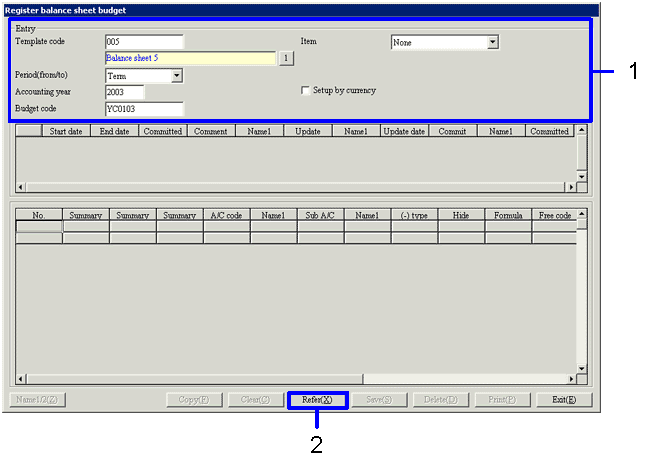
- Specify the "Template code", "Accounting period (from/to)" and "Accounting year". Specify the "Items" and "Currency" as necessary.
If the same budget code is specified when changing "Accounting period (from/to)" using the same template, the system automatically checks whether the annual total budget is consistent when the data is saved.
- Click the "Refer(X)" button.
→ If the "Budget code" of the registered budget is specified, the registered budget is displayed.
→ If a new "Budget code" is specified, the template is loaded and it becomes possible to make a new entry.
3. Entering the Budget Amt
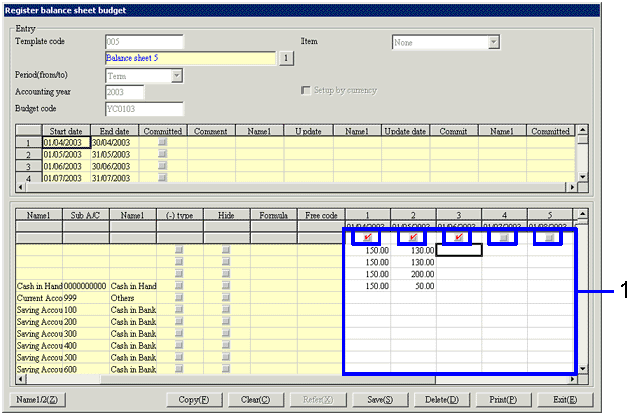
- Enter the budget in the relevant cells of the spreadsheet in the lower part of the screen, and select the "Save Object" checkbox.
It is also possible to enter the values in advance in Excel and to copy and paste the values to the appropriate cells.
4. Saving and confirming the registered budget
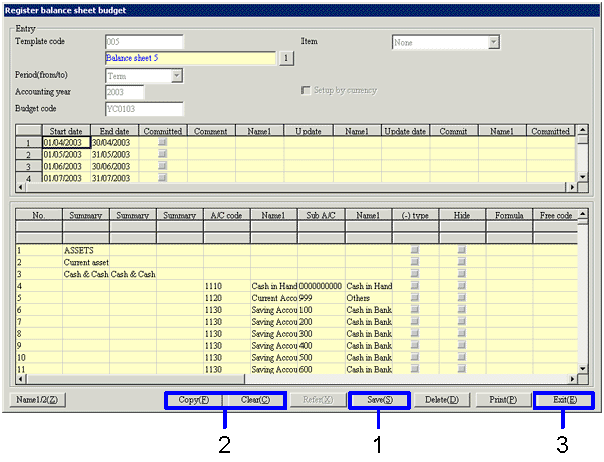
- When the data has been entered, click the "Save(S)" button.
- To enter another budget straight away, click the "Clear(C)" button, and go back to step 2 above, [Specifying the financial statements, period and other details used in registering the budget].
To register a new budget with the same data but a different code, click the "Copy(F)" button.
- When the budgets have been registered, click the "Exit(E)" button.