 Register goods group
Group goods registered [Register goods]. Grouping will be one tiered.
→ What are
goods?
 Screen Transition
[Master Management]
↓
[Logistics Master]
↓
[Goods Management]
↓
[Register goods group]
↓
[Register goods group] screen - [Details],
[Additional information], [Register structure]
tab
Item
Setup - [Details] tab
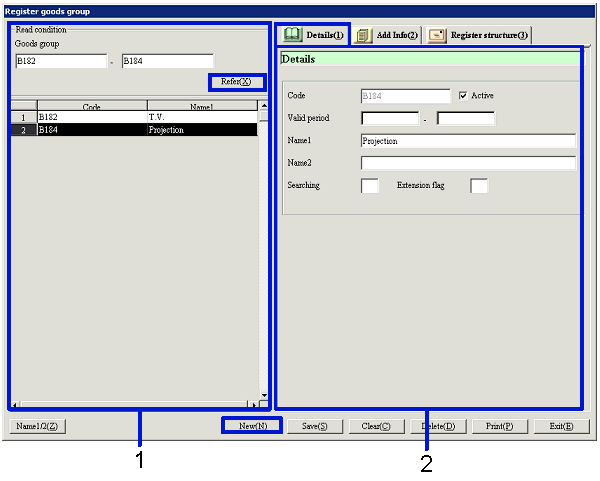
- Goods group selection (or
new registration)
When the "Refer" button is clicked, the list of
goods groups that match the read conditions will be displayed. Select the goods group to setup. The information on the goods group will
display on the [Details] tab.
When registering new goods, click the "New" button.
-
Goods group, Code
Select the read conditions of the object goods
group to register/refer. The user
can specify the range of the goods group codes.
-
Code, Name
The code and the name of the goods groups that
match the read conditions will be displayed.
- Details entry (1)
Item
Setup - [Additional information] tab
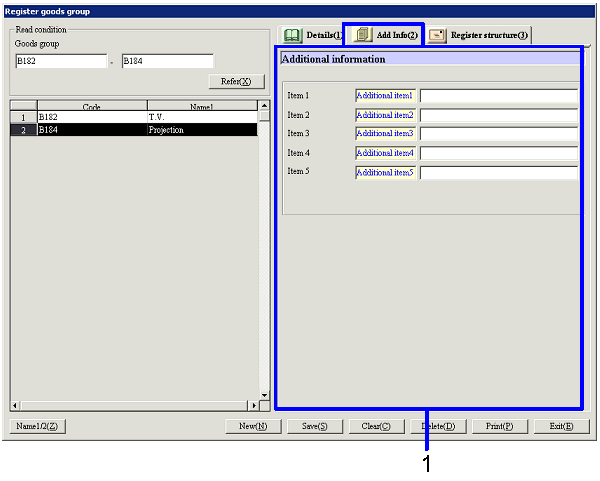
- Additional information entry
-
Item 1-5
Enter additional information. The names displayed
can be changed in [Additional name
setup] in [System custodian].
Item setup - [Register
structure] tab
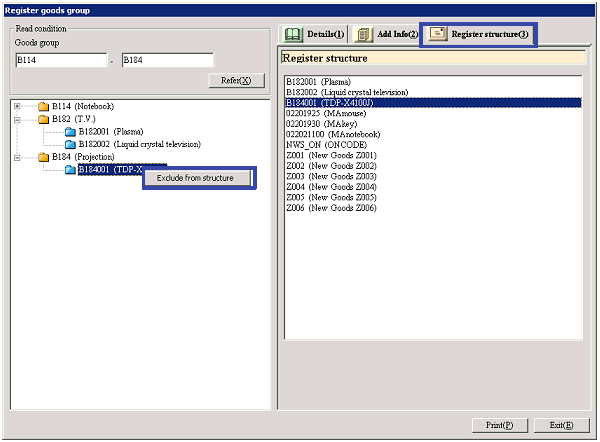
[Register goods group structure]
- Goods group selection
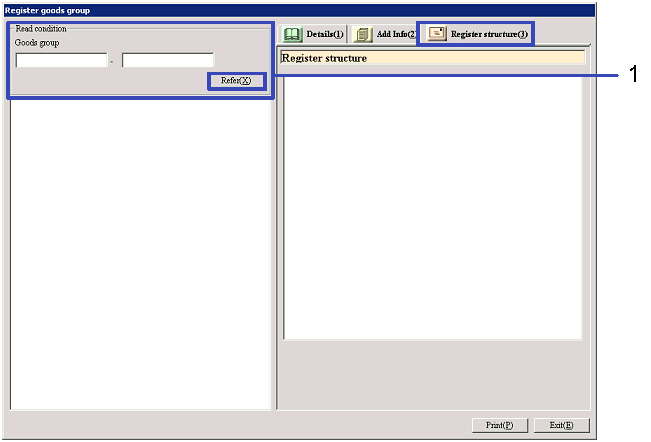
When the "Refer" button is clicked, the
current structure information of the goods groups that match the read conditions
will appear on the left side of the screen. On the right side of the screen,
only the registered goods will be displayed.
-
Goods group
Select the read conditions of the object goods
group to register/refer.
The user can specify the range of the goods groups.
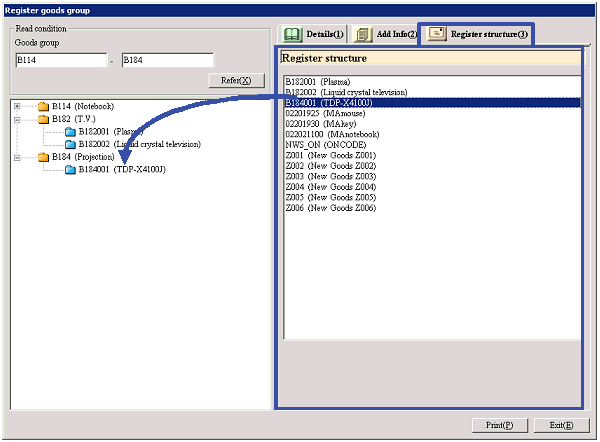
- Drag and drop goods from
the right side to the left side of the screen
Select the goods to register the structure to the
specified goods group from the right side of the screen, then drag and drop the
goods to the goods group folder on the left side. Multiple goods can be dragged
and dropped all at once by using the Ctrl key and / or the Shift key.
[Change / cancel goods group structure]
- Right-click goods on the
left side of the screen
When canceling a goods group structure, select the
goods to cancel, then either select "Exclude from structure" with the
right-click, or drag and drop to the right side of the screen.
When making changes to the group structure, first cancel the structure, then
drag and drop from the right side of the screen to the left side.
Buttons