 Register location
Register location of goods
when managing locations in the warehouse.
In the Details tab, register the person in charge of managing a specific
location, sizes, capacities, etc.
In the Register structure tab, register the structure for which warehouse will
manage the registered location.
The registered location can be used for managing multiple warehouses. The location with the structure
registered to a warehouse will be used for selecting a location when the
warehouse is specified.
Note that the location cannot be specified even when the warehouse is selected
in case the "Object of location control" checkbox is not turned ON in [Register warehouse/process]. This will lose the meaning of the
structure information registered.
 Screen Transition
[Master Management]
↓
[Logistics Master]
↓
[Other Management]
↓
[Register location]
↓
[Register location] screen - [Details], [Register structure] tab
Item
Setup - [Details] tab
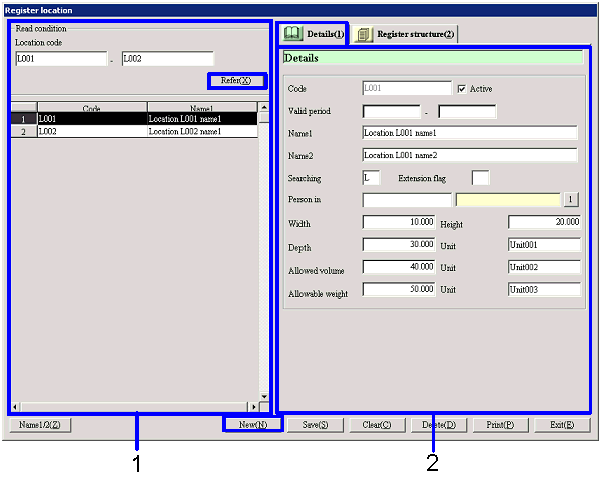
- Location selection (or new
registration)
Whenthe"Refer" button is clicked, the list of locations
that match the read conditions will list up. Select the location to setup. The information on the selected
location will appear on the Details tab.
When registering a new location, click the "New" button.
-
Location, Code
Select the read conditions for the locations to register or refer.
The range of the location code can be specified.
-
Code, Name
The code and name of the location codes that match the read conditions will be
displayed.
- Details entry
-
Code
Enter the location code.
Make an entry with up to 20 single-byte alphanumeric.
-
Active
-
Term of
validity
-
Name1, 2
-
Searching
-
Extension
flag
-
Person in charge
Enter the code of the person in charge who will be responsible for managing the
location. Use this information as
memo data.
-
Width, Height, Depth, Unit
Enter the size of the location (Width, Height, Depth) and its unit. Up to 6 integer numbers and 3 decimal
numbers can be entered for the sizes.
-
Allowed volume, Unit
Enter the capacity of the location and the unit. Up to 6 integer numbers and 3 decimal numbers can be entered
for capacity.
-
Allowable weight, Unit
Enter the allowable weight for the location and the unit. Up to 6 integer numbers and 3 decimal
numbers can be entered for the weight.
Item
Setup - [Register structure] tab
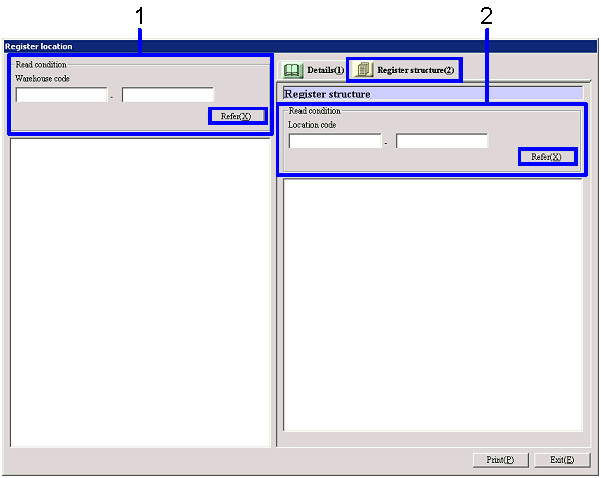
[Location structure registration]
- Warehouse selection
When the "Refer" button is clicked, the warehouses that
match the read conditions will be displayed on the left side of the screen.
-
Warehouse code
Select the read conditions of the warehouse codes to register.
The range of the warehouse codes can be specified.
- Location code selection
Click the "Refer" button to list the
location codes that match the read conditions on the right side of the screen.
-
Location code
Select the read conditions of the location codes to
register.
Ranges of location codes can be specified.
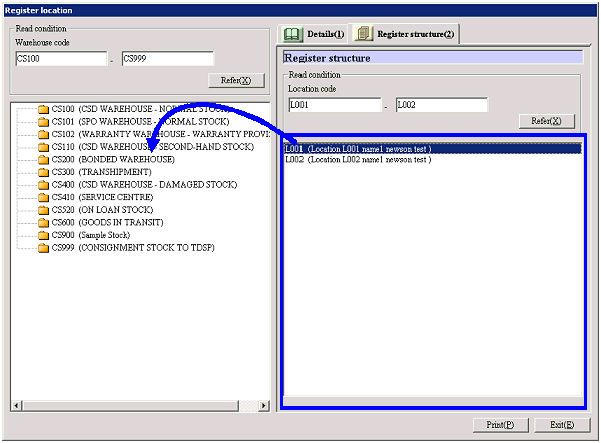
- Drag and drop from the
right side to the left side of the screen
Select the locations to register the structure to
the warehouse from the right side of the screen, and then drag and drop to the
Warehouse folder on the left side of the screen. When selections are made by using the Ctrl key and/ or the Shift
key, the structure of one location can be registered to multiple warehouses.
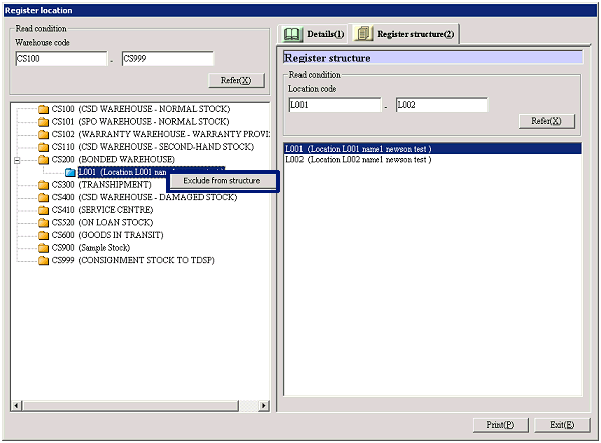
[Location structure change, cancel]
- Right-click the location
on the left side of the screen
When canceling a location structure, select the
location to cancel from the left side of the screen, then select "Exclude from
structure" by right-clicking the mouse, or drag and drop to the right side of
the screen.
When changing the location structure, first cancel the structure then drag and
drop from the right side of the screen to the left side.
Buttons