 Register exchange rate (yearly)
Set exchange rates between the individual
currencies registered with [Register currency].
[Register exchange rate (yearly)] allows registration of rates for one year at
one time for each of the ten rate types.
To register rates for more than one rate type for each month, use [Register exchange rate (basic)], [Register
exchange rate (additional)].
 Screen
Transition
Screen
Transition
[Master management]
↓
[Common master]
↓
[Currency management]
↓
[Register exchange rate (yearly)]
↓
[Register exchange rate (yearly)] screen
Item
Setup
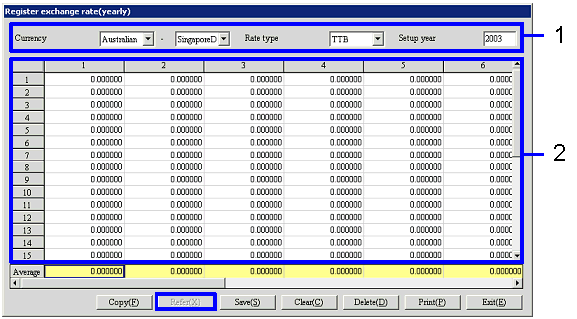
- Select currency, rate type
and setup year
After specifying "Currency," "Rate type" "Setup
year," click the "Reference" button.
A rate can be registered in [Spread].
-
Currency
Select currencies from those registered in [Register
currency].
The left is the currency before conversion and the right is the currency after
conversion. Std currency is
displayed by default for the currency after conversion.
-
Rate type
Select the rate type for which to register the
exchange rate from the following options: "TTB, "TTS," "TTM," "Internal rate," "Cash-S,"
"Acceptance-S," "AS-B," "Usance-B," "AS (None L/C)-B," "Cash-B."
-
Setup year
Enter the year for which to register the exchange
rate.
- Enter exchange rate
Each row indicates a date in the term and each
column a month (January – December).
When a rate has been registered on the [Register exchange rate (basic)]
or [Register exchange rate (additional)] screen, the value is displayed.
Enter the rate in the corresponding cell.
The last row automatically shows the average rate of each month.
At entry, entering a value in any cell and pressing the Enter key copies the
same value in all of the following cells, which may be useful, for example,
when setting a fixed rate for a whole month. Entries can also be made by entering values with Excel and
collectively copying and pasting more then one cell.
-
1 - 12
Indicates a month.
-
1 - 31
Indicates a date.
Buttons
-
Copy
Click this button to copy an entry to another rate
type. The currency and rate type
become available for changing.
Make necessary changes and click the "Save" button.
-
Name1/2
-
Save
-
Clear
-
Delete
-
Print
-
Exit