 Register correspondent group
In this module, the correspondents registered
in [Register correspondent] can be
grouped. Correspondents can be
grouped at one level.
→ Correspondent
 Screen transition
[Master management]
↓
[Common master]
↓
[Trade management]
↓
[Register correspondent group]
↓
[Register correspondent group] screen –
[Details 1] tab, [Details 2] tab, [Additional
information] tab, [Register structure] tab
Item
setup - [Details 1] tab
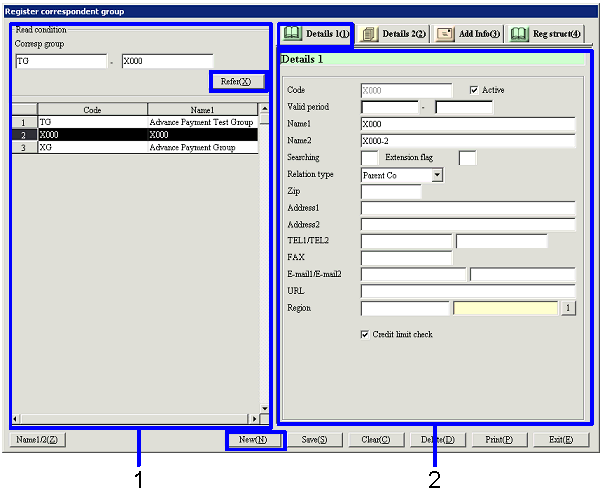
- Select correspondent group
(or register new correspondent group)
Clicking the "Reference" button lists that meet the
read conditions. Select the correspondent
group to set up. The information
on the correspondent group selected is displayed on the [Details 1] tab.
To register a new correspondent, click the "New" button.
-
Correspondent group, code
Select conditions to read the correspondent groups
to register or refer to. A range
of correspondent group codes can be specified.
-
Code, name
The codes and names of the correspondent groups
that meet the read conditions are displayed.
- Enter details (1)
-
Code
Up to 20 English one byte characters can be entered.
-
Active
-
Term of
validity
-
Name 1, 2
-
Searching
-
Extension
flag
-
Relation type
Select from the following options: "Parent Co," "Consolidated
subsidiary," "Equity method subsidiary Co," "Non-consolidated subsidiary," "Equity method affiliated Co,"
"Equity method non-applied Co," "Parent Co
branch/factory," and "Others." Correspondents
can be grouped independent of the relation type. The relation type is available for interlocking with the
consolidation package.
-
Zip, address 1, address 2
Enter the zip and address of the correspondent
group.
-
TEL 1/TEL 2, FAX
Enter the telephone No. and FAX No. of the correspondent
group.
-
E-mail 1/E-mail 2, URL
Enter the E-mail address and URL of the correspondent
group.
-
Region
Enter the region to which the correspondent group
belongs. Select from the regions
registered in [Register region].
-
Credit limit check
Check the box to check the credit limit for
individual groups.
Only the correspondent groups with this check box checked are displayed as the
registration object in [Register credit
limit].
For correspondent groups with this box checked, only the structure of the
correspondents with "Correspondent group" specified as "Credit limit check
type" in [Register correspondent] can be registered.
Item
Setup - [Details 2] tab
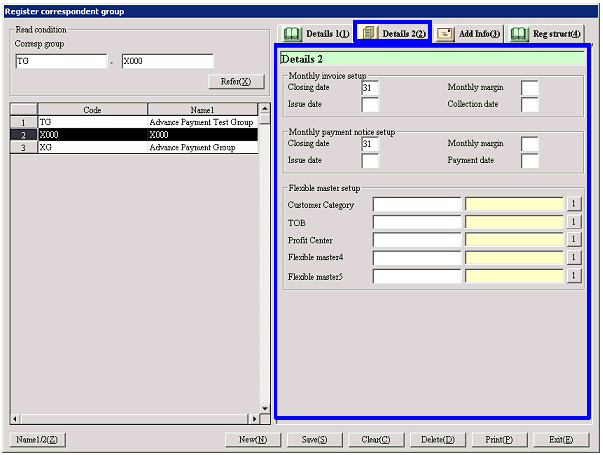
- Enter details (2)
-
Monthly invoice setup, monthly
payment notice setup
Set the date to be displayed by default for the closing date to be used in [Issue
monthly invoice] of [Claims control module] and [Issue
monthly payment notice] of [Debts control module].
-
Closing date
Set the closing date between "1" and "31"
inclusive. Enter "31" when the last
day of the month is the closing date.
-
Monthly margin
Set the monthly margin between the closing date and
the collection date/payment date. Enter "0" if the collection date/payment date is in the same month as the closing
date, "1" if it is in the next month and "2" if it is in the month after next.
-
Issue date
Set the bulk invoice/bulk payment voucher issue
date between "1" and "31" inclusive.
Enter "31" when the last day of the month is the issue date. If the date is the same as or after the
closing date, it is regarded as in the same month as the closing date. If it is before the closing date, it is
regarded as a date in the next month.
-
Collection date/Payment date
Set the collection date/payment date between "1"
and "31" inclusive. Enter "31"
when the last day of the month is the date.
-
Statement of account setup
If this is the correspondent group for which statement of accounts is created,
set the following items:
-
Closing date
Set the closing date between "1" and "31"
inclusive. Enter "31" when the
last day of the month is the closing date.
-
Data to summarize
Select "Claims data only," "Debts data only" or "Claims/Debts."
Options depend on the "Relation type" set on the [Details 1] tab as shown
bellow:
For "Vendor": fixed to "Debts data only"
For "Cust": fixed to "Claims data only"
For "Cust & Vendor" or "Related company": any of "Claims data only,"
"Debts data only" and "Claims/Debts" can be selected
-
Output settlement history
Check the check box to specify as an object of
settlement history output.
-
Output aging report
Check the check box to specify as an object of
aging report output.
Set the following items if the check box is checked:
Summary type:
Select "Month" or "Date."
Output number of column:
Select the number between "1" and "13" inclusive.
Date interval:
Enter a number between "1" and "99" inclusive.
Item
Setup - [Additional information]
tab

- Enter additional information
Item
Setup - [Register structure] tab
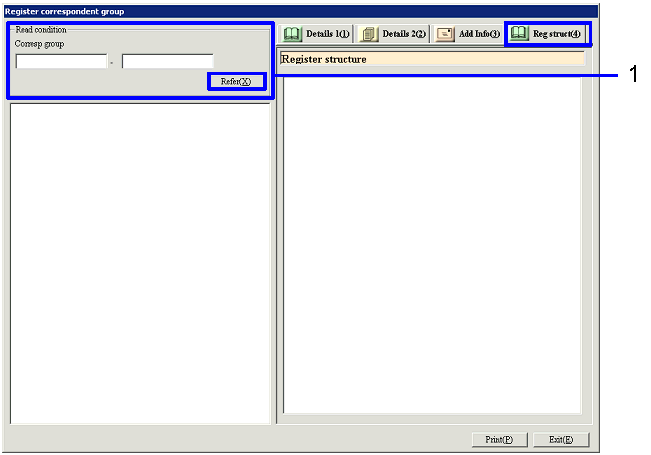
[Register correspondent group structure]
- Select correspondent group
Clicking the "Reference" button lists the
current structure information on the correspondent groups that meet the read
conditions on the left part of the screen. The right part of the screen lists correspondents
registered.
-
Correspondent group
Select conditions to read the correspondent groups
to register or refer to.
A range of correspondent groups can be specified.
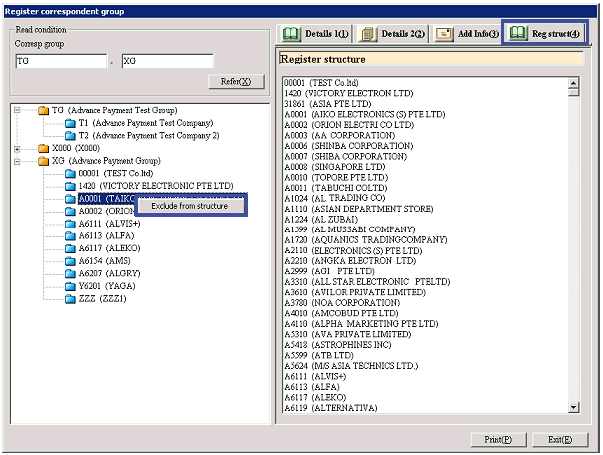
- Drag the Correspondent
from the right to the left part of the screen and drop
Select from the right part of the screen the correspondent
for which structure is to be registered for the specified correspondent group and
drag and drop to the correspondent group folder on the left part of the
screen. Selecting while the Ctrl
or Shift key is pressed down allows dragging and dropping more than one correspondent
at one time.
The correspondent with the "Group control" box checked on the [Details 3] tab
of [Register correspondent] is marked with a red icon ( )
for identification on the left part of screen.
)
for identification on the left part of screen.
To correspondent groups with the "Credit limit check" box checked on the [Details
1] tab, correspondents other than those with "Correspondent group" specified as "Credit limit check type" cannot be dragged and dropped.

[Change of cancel correspondent group
structure]
- Right-click a
correspondent on the left part of the screen
To cancel correspondent group structure
registration, select the correspondent concerned on the left part of the screen
and click the right button of the mouse and select "Exclude from structure" or
drag it to drop to the right part of the screen.
To change correspondent group structure, cancel the structure registration once
and drag and drop from the right to the left part of the screen again.
Buttons