 Register department structure
Set the department structure (levels) with the
departments registered in [Register department],
[Register warehouse/process], [Register summary department].
Departments for which structure is not registered cannot be used unless
they are directly assigned summary departments with "Authority to update," "Authority
to approve" or "Authority to refer" of [Employee setup] for a specific
employee. Be sure to register the
structure except for departments for special use.
 Screen Transition
[Master management]
↓
[Common master]
↓
[Department management]
↓
[Register department structure]
↓
[Register department structure] screen
Item Setup
[Register Dept structure]
- Select a summary department
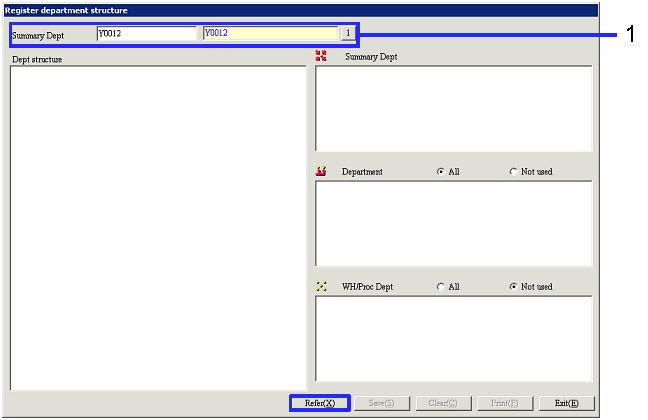
In "Summary Dept" in the upper left part of the
screen, enter the summary departments to be the top of the department structure
and click the "Reference" button.
The structure of departments is shown in "Dept structure."
-
Summary department
Select the department to be the object of department
structure registration. Only the
following summary departments can be entered here.
-
Of the summary departments in the
multilevel structure for which department structure is already registered, the
top summary department
-
Summary departments for which
department structure is not registered.
-
Department structure
One of the following is displayed depending on the "Summary
Dept" entered.
-
When summary department for which department structure is not
registered is specified
The specified summary department entered is
displayed on the left part of the screen.
-
When summary department for which department structure is already
registered is specified
The department structure of the specified summary
department is displayed on the left part of the screen.
-
When the top department is not specified
Clicking the "Reference" button without specifying
the top department displays the department structure of all of the summary
departments already registered.
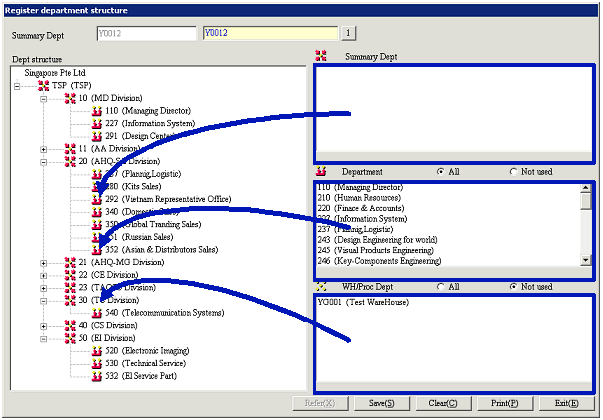
- Drag the department from
the right to the left part of the screen and drop
Select the department to be set as department
structure for the summary department specified from the right part of the
screen and drag and drop to the summary department folder on the left part of
the screen. Selecting while the
Ctrl or Shift key is pressed down allows dragging and dropping more than one
department at one time. Using the "All"
and "Out of Struct only" radio buttons allows filtering of the items on the
list on the right part of the screen.
-
When a Department (
 ) or
Warehouse/Process Dept (
) or
Warehouse/Process Dept ( ) is
dragged and dropped
) is
dragged and dropped
The selected department is copied to [Dept
structure].
The same department and warehouse/process department can be registered as many
times as desired for other levels as well.
-
When another summary department (
 ) is
dragged and dropped
) is
dragged and dropped
The selected department is moved to [Dept
structure]. Summary departments
once used at a level cannot be used at another level.
-
For All or Out of Struct only (for department and warehouse/process Dept
only)
Specify how the possible departments and
warehouse/process Depts for which structure is to be registered will be listed
on the right part of the screen.
All:
All departments including those registered at other
levels are displayed.
Out of Struct
only:
Only the departments for which no structure is
registered under any summary department are displayed.
[Change Dept structure]
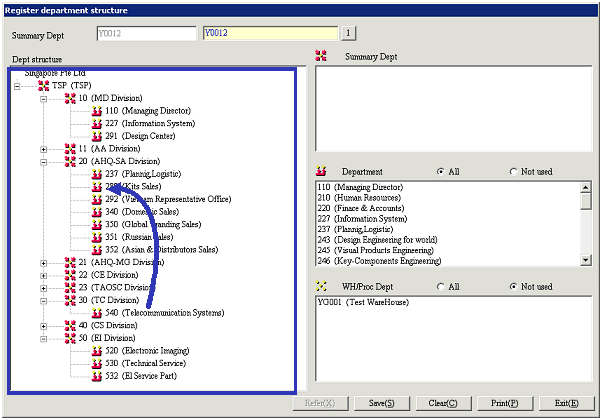
- Drag and drop a department
on the left part of the screen
Select a department on the left part of the screen
and drag and drop to the destination concerned.
-
When a Department () or
Warehouse/Process Dept () is
dragged and dropped
The selected department is moved to the destination
folder.
-
When another summary department () is
dragged and dropped
The folders belonging to the summary department are
collectively moved.
[Cancel Dept structure]
- Right-click a department
on the left part of the screen
To cancel dept structure registration, select the
department concerned on the left part of the screen and click the right button
of the mouse and select "Exclude from structure."
The exclusion from the structure is not applied to the data until the "Save"
button is clicked.

-
When a Department () or
Warehouse/Process Dept () is
right-clicked
Only the department selected is deleted.
-
When another summary department () is
right-clicked
All the departments belonging to the department are
deleted. In this case, the deleted
summary departments and the summary departments belonging to the deleted
summary departments reappear on the list of summary departments on the right
part of the screen.
Buttons
-
Reference
-
Save
Even if saving is completed, the registration of the structure is not
applied as long as the operator who executed saving is logged in and using A.S.I.A. The operator needs to log out once.
-
Clear
-
Print
-
Exit