 Register department
Register departments for which transaction
entries are made on the entry screen (departments that are at the bottom level
in the department organization).
The departments registered here require register structure in [Register department structure].
→ To Department
 Screen Transition
[Master management]
↓
[Common master]
↓
[Department management]
↓
[Register department]
↓
[Register department] screen – [Details]
tab [Additional information] tab
Item
Setup - [Details] tab
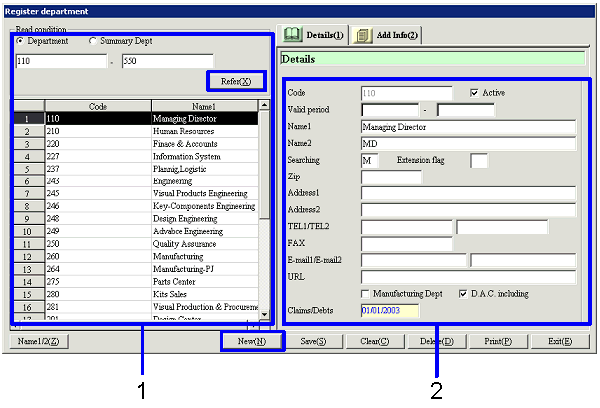
- Select department (or
register new department)
Clicking the "Reference" button lists the
departments that meet the read conditions. Select a department to set up. The information on the department selected is displayed on
the Details tab.
To register a new department, click the "New" button.
-
Department, summary Dept, code
Select the read conditions for the departments to register or refer to.
Department:
Select this to directly search for a department. A range of department codes can be specified.
Summary Dept:
Select this option to select a summary Dept and specify a department for which
structure is registered for the summary department. Select a summary Dept code.
-
Code, name
The codes and names of the departments that meet the read conditions are
displayed.
- Enter details
-
Code
Enter a code for the department. Up to 20 alphanumeric characters can be
entered.
Note that the warehouse/process department codes registered in [Register warehouse/process] or summary department
codes registered in [Register summary department]
cannot be used.
-
Active
-
Term of
validity
-
Name 1, 2
-
Searching
-
Extension
flag
-
Zip, address 1, address 2
Enter the zip and address of the department.
-
TEL 1/TEL 2, FAX
Enter the telephone No. and FAX No. of the department.
-
E-mail 1/E-mail 2, URL
Enter the E-mail address and URL of the department.
-
Manufacturing Dept
If the department to register is manufacturing Dept,
check this check box. Of the A/C
registered as "Manufacturing cost A/C" in the entry, only the departments with
the check box ON can be entered.
-
Check the check box (manufacturing
Dept) → Both cost of sales and sales and general can be entered.
-
Uncheck the check box (non-manufacturing
Dept) → Cost of sales cannot be entered.
-
D.A.C. INCLUDING
To use as a department of deferred auto-journal
depreciation in [Deferred
account control module], check the check box.
-
Claims/Debts closing date
For new registration, enter the closing date of the
previous term.
For reference, the latest claims/debts closing date updated in [Claims/Debts
closing] of [Closing control module] is displayed, which cannot be changed.
Item
setup - [Additional information]
tab
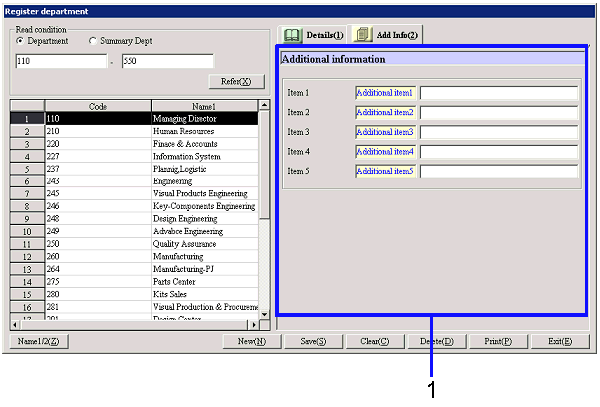
- Enter additional information
Buttons
-
Reference
-
Name1/2
-
New
-
Save
Even departments that have been saved cannot be
used without structure registered in [Register
department structure] unless they are directly assigned departments with "Authority to update,"
"Authority to approve" or "Authority to refer" of [Employee setup]
of [System custodian] for a specific employee. This is because departments for which structure is not
registered do not come under authority of any operator unless they are directly
specified with "Authority to update," "Authority to approve" or "Authority to
refer" of [Employee setup].
-
Clear
-
Delete
-
Print
-
Exit