 Register bank account
Register bank accounts to
manage in operation of A.S.I.A.
Register own bank accounts, correspondent bank accounts and employee's bank accounts.
 Screen Transition
[Master management]
↓
[Common master]
↓
[Trade management]
↓
[Register bank account]
↓
[Register bank account] screen – [Details]
tab [Additional information] tab
Item
Setup - [Details] tab
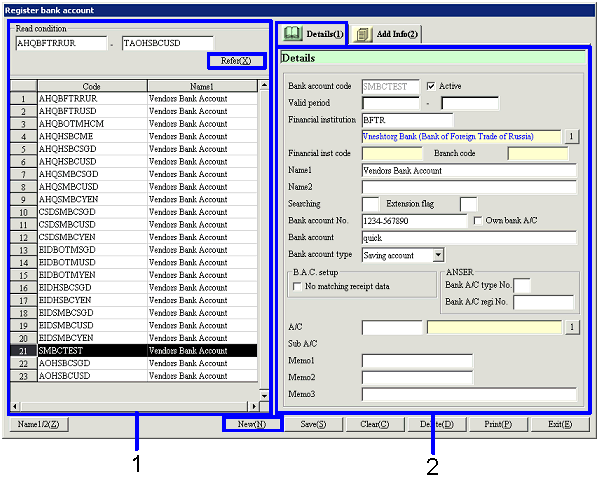
- Select bank account (or
register new bank account)
Clicking the "Reference" button lists the
bank accounts that meet the read conditions. Select the bank account to set up. The information on the bank account selected is displayed on
the Details tab.
To register a new bank account, click the "New" button.
-
Bank account, code
Select conditions to read the bank accounts to register or refer to.
A range of bank account codes can be specified.
-
Code, name
The codes and names of the bank accounts that meet the read conditions are
displayed.
- Enter details
-
Code
Enter a code for the bank account. Up to 20 English one byte characters
can be entered. Codes entered here
are used as the codes in bank account masters in A.S.I.A. and not "Bank account
codes" assigned by JBA.
-
Active
-
Term of
validity
-
Finncl Institutn
Select out of the financial institutions registered
in [Register financial institution]. Selecting a financial institution
displays the "Finncl Institutn code" and "Branch code" of the financial
institution concerned that are registered in [Register financial institution].
-
Name 1, 2
-
Searching
-
Extension
flag
-
Bank account No.
Enter the bank account No.
-
Own bank account
If this check box is checked, the account is considered as an own bank account
and used as "T/F" in the header of the entry screen of [Sales control
subsystem] or as "Own bank account" in [Claims subsystem] and [Debts subsystem]. Only the bank accounts that are set as
own bank accounts can be used for auto-transfer and receiving matching.
If the check box is unchecked, the account is considered as a correspondent
bank account and used as "T/F" in the header of the entry screen of [Purchase control
subsystem] or as "Corresp's bank account" in [Claims subsystem] and [Debts subsystem].
-
Bank account nominee
Enter a bank account nominee.
-
Bank account type
Select the bank account type from the following
options: "None," "General deposit," "Current deposit," "Tax pay reserved
deposit," "Saving account," "Call deposit," "Time deposit," "Installment time
deposit," "Others." This
classification corresponds with the deposit type of JBA.
Only the accounts specified as "General deposit" and "Current deposit" can be
used as accounts for settlement.
-
No matching receipt data
Check the box for an account not to be matched in [Payment/Receipt
data matching] of [Bank account control module]. Checking this check box sets the
"Process type" to "None" in
[Payment/Receipt data matching].
-
Bank account
type No.
This is an item for future
enhancementfor compliance with ANSER.
Enter a bank account type No.
-
Bank account
registration No.
This is an item for future
enhancementfor compliance with ANSER.
Enter a bank account registration No.
-
A/C, Sub A/C
Displayed as default A/C // Sub A/C for
auto-journal setup when the status of notes is changed to "Settle" at [Update notes
receivable status] in [Notes receivable module]. Only the A/C // Sub with the SP type set to
"Bank deposit"
at [Register A/C and Sub A/C]
in [Accounting master module] can be set here.
-
Memo 1-3
Enter a memo.
Item
Setup - [Additional information]
tab

- Enter additional information
Buttons