 Register unit price
Registration of the sales unit price and the
purchase unit price can be conducted by setting up terms of validity by
correspondent, by currency, by unit/packing goods, and by class. Common unit prices can be registered
for correspondents without specifying specific correspondents.
Also, standard unit prices can be registered by goods regardless of the
correspondent. When standard unit
prices are registered, they can be used as basic material for cost control in
process control.
 Screen Transition
[Master management]
↓
[Logistics master]
↓
[Goods management]
[Register unit price]
↓
[Register unit price] screen - [Sales unit price], [Purchase unit price],
[Unit price (Std)] tab
Item Setup- Selection of sales unit
price/purchase unit price to register
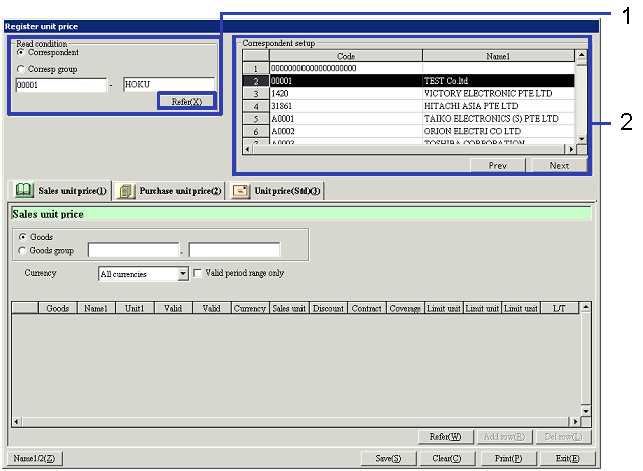
- Correspondent search
When the "Refer (X)" button is clicked, the list of
correspondents that match the specified range will be displayed.
-
Correspondent, Correspondent group,
Code
Specify the range of the correspondents to register
and/or refer.
Customer:
Select when directly searching correspondents.
Correspondent group:
Select when selecting a correspondent group, then specifying correspondents
that have structures registered in that correspondent group.
-
Code
Select the code in accordance with the "Customer"/"Correspondent
group" selected.
- Select Correspondent
From the correspondent list on the right side of the screen, select the
correspondent to register the unit price.
When registering common unit prices, select the correspondents with the
correspondent code specified to "00000000000000000000" (20 zeros).
-
Code, Name, Correspondent type
The codes and names of the correspondents that
match the specified range will be displayed.
Item
Setup - Sales unit price/Purchase unit price
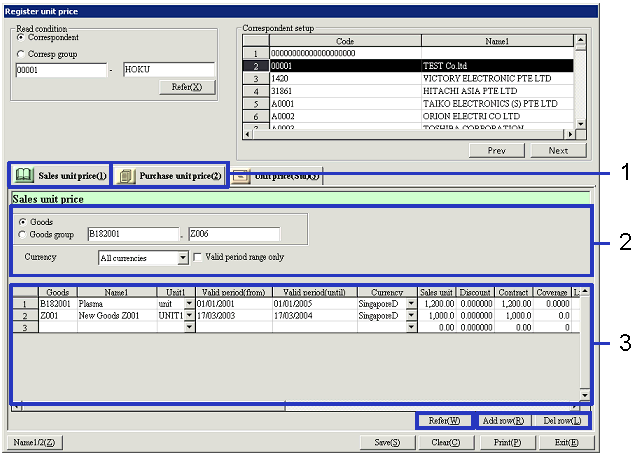
- Selection of the [Sales
unit price] tab or the [Purchase unit price] tab
Click the tab of the unit price to register. In the [Sales unit price] tab, register
unit prices of correspondents with the "Correspondent type" set as "Cust,"
"Cust & Vendor," or "Affiliated Co."
In the [Purchase unit price] tab, register unit prices of correspondents
with the "Correspondent type" set as "Vendor," "Cust & Vendor," or "Affiliated
Co.."
- Goods selection
When the "Refer (W)" button is clicked, the list of
registered unit prices that match the specified range will be displayed.
Even in the case of correspondents that do not have unit prices registered, specify
the range and click the "Refer (W)" button.
-
Goods, Goods group
Specify the range of goods to register and/or
refer.
Goods:
Select when making a direct search of goods.
Goods group:
Select when first selecting the goods group, then specifying goods with the
structure registered in that goods group.
-
Currency
Select the currency to register and/ or refer from "All currencies" or the
currencies registered in [Register
currency].
-
Output term of validity range only
When this checkbox is turned ON, only the registered unit prices within the
term of validity will be displayed on the spread.
- Unit price registration
Register unit prices by unit, by currency, by term
of validity, by coverage qty, and by class. When adding and deleting rows,
click on the "Add row" button and/or the "Delete row" button.
When either the unit, currency, term of validity, or the coverage Qty differs,
multiple unit prices can be registered for a single good. This is useful for volume discounts
such as when changing the discount rate for sales in units of 100 and units of
1000.
-
Unit
Select the unit of the goods registered in [Register goods]. When packing units within the term of validity are registered
in [Register packing unit], selection
can also be made from those units.
-
Term of validity (from), Term of
validity (until)
Enter the term of validity of the unit price.
-
Currency
Select the currency registered in [Register
currency].
-
Sales unit price (Std) (Displayed
only on the [Sales unit price] tab)
Enter the sales unit price (Std) (regular price).
-
Purchase unit price (Std) (Displayed
only on the [Purchase unit price] tab)
Enter the purchase unit price (Std) (regular price). Make an entry with up to 8 integer
numbers and 4 decimal numbers.
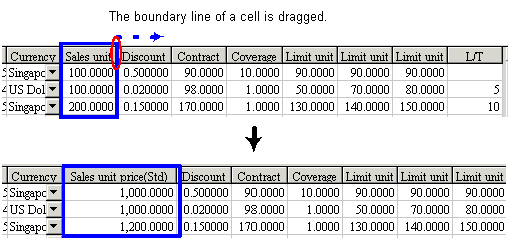
Notes:
When amounts are entered on the Spread, note the width of the cell.
When an amount is manually entered where the width is narrow, only the number
of digits that can be displayed with that width can be entered. In the following example, only the
value up to the 3rd decimal points is displayed when it is supposed
to display up to the 4th decimal point. In such a case, enter the amount after dragging the border
of the cell to the right and widening the width.
-
Discount rate
Enter the discount rate from the contract unit
price. Make an entry with up to 6
digits after the decimal point.
Note that the amount automatically calculated based on the "Sales unit price (Std)"
or the "Purchase unit price (Std)" will be displayed as the "contract unit
price" when the value of the "Discount rate" is changed after manually entering
the "contract unit price."
-
Contract unit price
The contract unit price will be displayed after
automatic calculation based on "Sales unit price (Std)" or the "Purchase unit
price (Std)," and the "Price down rate," however it can also be directly
entered. Make an entry with up to 8
integer numbers +4 decimal numbers.
-
Coverage Qty
Enter the minimum qty to apply this unit
price. Make an entry with up to 8
integer numbers +4 decimal numbers.
Only when a quantity more than this "Coverage Qty" is entered in 1 detail list,
the registered "Contract unit price" is displayed as the "Unit price setup" as
default.
-
Limit unit price1-3 (Sales unit
price)
Register the maximum amount allowed for reduction from the "Contract unit
price" by "SO unit price change available level" ("A"-"C") in [System custodian]-[Class setup]." It is setup so that "Limit unit price 1"
is "Level A," "Limit unit price 2" is "Level B," and "Limit unit price 3" is "Level
C." Enter the amount so that the "Contract
unit price" and the limit unit price are in the following range.
"Contract unit price" ≥ "Limit unit price 3"(Level C) ≥ "Limit unit price 2"(Level B) ≥ "Limit unit price 1"(Level A)
"Level A" allows the most price reduction and "Level C" allows the least amount
of price reduction.
-
Limit unit price1-3 (Purchase unit
price)
Set the highest amount allowed to be added on top of the "Contract unit price"
for purchase orders. Register the
highest amount by "PO unit price change available level" ("A"-"C") in [System custodian]-[Class setup]. It is set up so that "Limit unit price 1"
is "Level A," "Limit unit price 2" is "Level B," and "Limit unit price 3" is "Level
C." Enter the amount so that the "Contract
unit price" and the limit unit price are in the following range.
"Contract unit price" ≤ "Limit unit price 3"(Level C) ≤ "Limit unit price 2" (Level B) ≤ "Limit unit price 1" (Level A)
Purchase is possible even when "Level A" is the highest unit price. Purchase will not be possible if "Level
C" is too high compared to the Contract unit price.
-
L/T
Enter the lead time from sales order or purchase order to delivery in number of
days.
The lead time entered here, in the case of sales order entry, will be used to
calculate the scheduled shipping date based on the "delivering date" and the "Goods
L/T" registered in [Register goods]. In the case of purchase request entry,
it will be used to calculate the scheduled arriving date based on the "Delivering
date" and the "Goods L/T" registered in [Register
goods].
Item
Setup - Unit price (Std)
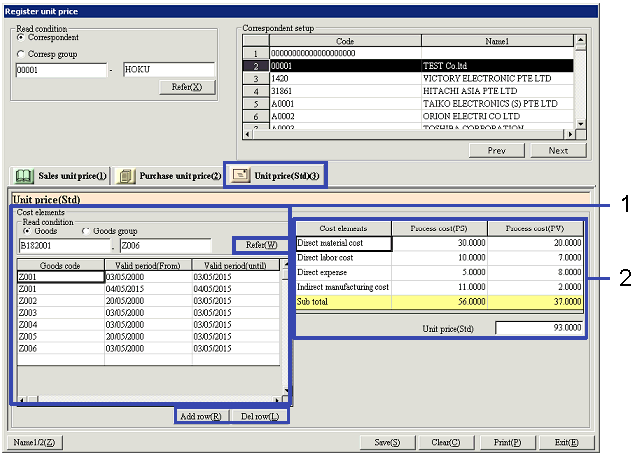
- Goods selection
When the "Refer (W)" button is clicked, the list of
goods with the unit price (Std) registered from those that match the specified
range will be displayed.
Even when unit prices (Std) have not been registered, specify the range and
click the "Refer (W)" button.
-
Goods, Goods group
Specify the range of the goods to register and/or
refer.
Goods:
Select when making a direct search of goods.
Goods group:
Select when first select a goods group, then specifying goods with the
structure registered in that goods group.
-
Goods code
Select the goods to register the unit price (Std).
-
Term of validity (From), Term of
validity (until)
Enter the term of validity of the unit price (Std).
- Unit price (Std) registration
-
Cost elements
"Direct material cost," "Direct labor cost,"
"Direct expense," and "Indirect manufacturing cost" will be displayed as the cost
elements.
-
Process cost (PS), Process cost (PV)
Enter the "Process cost (PS)" and the "Process cost
(PV)" for each cost element.
-
Unit price (Std)
The total of the "Process cost (PS)" and the
"Process cost (PV)" for each cost element will automatically appear. Direct entry is also possible.
Buttons
-
Prev
When there are more than 500 registered correspondents, a list by every 500
correspondents will be displayed.
In such a case, use this button to view the previous 500 correspondents.
-
Next
When there are more than 500 registered
correspondents, a list by 500 correspondents will be displayed. In such a case,
use this button to view the next 500 correspondents.
-
Refer (Main item)
Display the correspondents to register and/or
refer.
-
Refer (Each tab)
Display the goods to register and/or refer.
-
Name1/2
-
Add row
-
Del row
-
Save
-
Clear
-
Print
Select the unit price to output from "Sales unit price," "Purchase unit
price," and "Unit price (Std)."
Only the ranges of "Sales unit price" and "Purchase unit price" can be
specified.
-
Exit